
Building a worksheet by hand is fine once. Done every morning for the same instrument, it costs time and the arrangement drifts: the blank moves from slot 1 to slot 3, the duplicate gets forgotten when the bench is busy. A worksheet template fixes the arrangement once. A new worksheet created from it is filled by SENAITE according to that layout.
What a template defines
Templates live under Setup, Worksheet Templates. Besides the
required Name, a template has three parts.
Analyses. The Analysis Services tab lists the services the
template takes. Only unassigned analyses of these services are
pulled onto the worksheet.
Instrument and method. Preferred instrument and Restrict to Method narrow the template to one instrument or one method. Both
are set on the new worksheet as well.
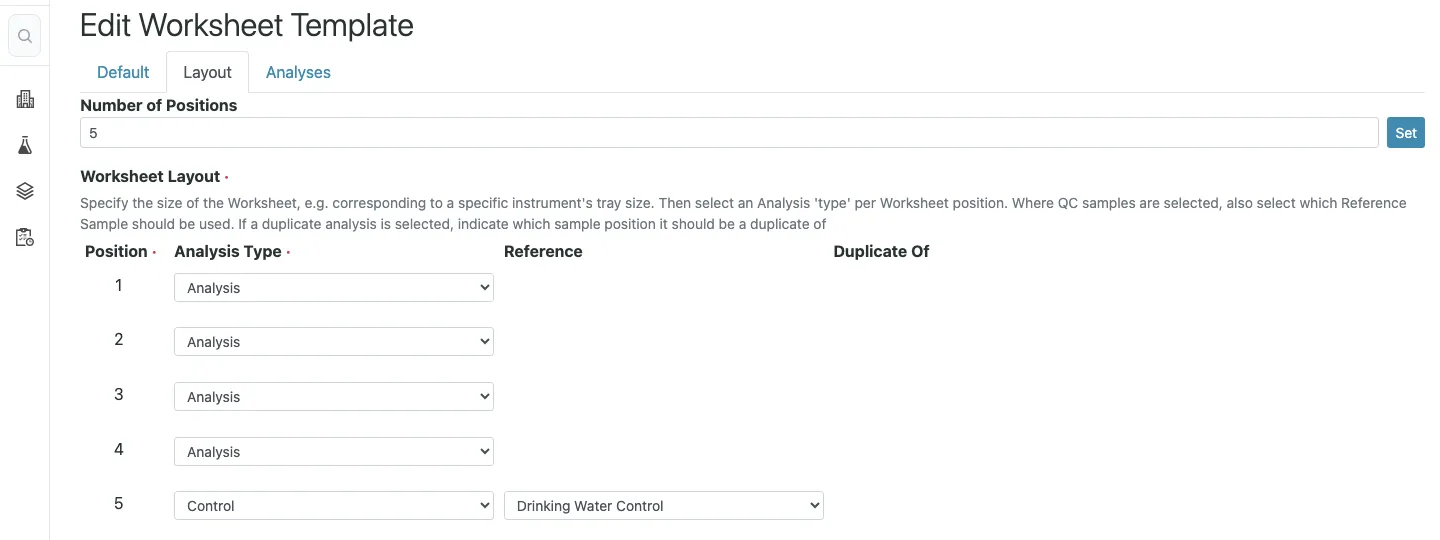
Layout. On the Layout tab, Number of Positions sets the size
of the worksheet, typically the tray or rack size of the
instrument. After pressing Set, every position gets an
Analysis Type:
Analysis: a slot for a routine sampleBlank: a slot for a blank, with aBlank ReferenceControl: a slot for a control, with aControl ReferenceDuplicate: a duplicate, withDuplicate Ofnaming the position it duplicates
The blank and control references point to a reference definition, not to a specific reference sample. That difference matters later.
Before you start: the reference definitions
Blank and Control only appear in the type list once matching
reference definitions exist (Setup, Reference Definitions). A
definition with the Blank box ticked enables blank slots; one
without enables control slots. A template built before the
definitions exist can only hold analyses and duplicates.
The definitions alone are not enough. When a worksheet is filled,
SENAITE looks for reference samples linked to the definition.
Reference samples are created under a supplier (Setup,
Suppliers, then the supplier’s Reference Samples), carry an
expiry date and, through the definition, the expected values. Only
valid ones are used: active, not expired, not disposed.
A worked example
A photometer runs nitrate and nitrite on a 20-position tray. The lab wants a blank first, a control second, a duplicate at the end, and as many samples as fit in between.
| Position | Analysis Type | Reference / source |
|---|---|---|
| 1 | Blank | ”Reagent blank” definition |
| 2 | Control | ”Nitrate control 10 mg/L” definition |
| 3 to 19 | Analysis | |
| 20 | Duplicate | Duplicate of position 3 |
Analysis Services: nitrate, nitrite. Preferred instrument: the
photometer.
On Monday morning there are 25 samples with unassigned nitrate analyses, eight of them also with nitrite. The lab manager creates a worksheet from the template. SENAITE then:
- Takes the unassigned nitrate and nitrite analyses, ordered by priority, and skips any whose service does not allow the photometer.
- Gives each sample one of the 17 routine slots. Nitrate and nitrite of the same sample share the slot. After 17 samples the slots are full; the remaining 8 samples stay unassigned for the next worksheet.
- Adds a duplicate of the sample in position 3 at position 20.
- Looks for a valid reference sample of each definition and places blank and control analyses at positions 1 and 2. Where several reference samples qualify, it takes the one that covers most of the template’s services.
- Sets the photometer as the worksheet’s instrument.
The analyst opens a worksheet whose positions match the physical tray, with QC where the lab’s procedure puts it.
Why slots stay empty
Most questions about templates come down to one of these.
No valid reference sample. If the only reference sample of the blank definition has expired, position 1 stays empty. SENAITE does not show an error; the worksheet simply has no blank. Keep at least one valid reference sample per definition in stock, and check expiry dates as part of the monthly QC routine.
The Blank box on the reference sample. For a blank slot the
reference sample itself has to be marked as Blank, not only its
definition. For a control slot it must not be. A blank sample
linked to a control definition is ignored on both kinds of slot.
A reference sample that does not cover the services. The reference sample needs expected values for the services in question. A control that only defines nitrate produces no nitrite control analysis.
The duplicate’s source slot is empty. A duplicate is only created when its source position holds a sample. On a quiet day with no samples, position 20 stays empty as well.
The instrument filter. With a Preferred instrument set, only
analyses whose service allows that instrument are taken. If a
service lists a different instrument, its analyses never land on
this template’s worksheets. Check the instrument assignment of the
services before blaming the template.
Analyses already assigned. Only Unassigned analyses are
pulled. Work that sits on another open worksheet is not moved.
Templates without a layout
A template without layout is legitimate. It then acts as a filter:
the Add Analyses tab of the worksheet only offers analyses of the
template’s services, and the analyst picks them. That suits benches
where the order does not matter but the scope does, for example a
microbiology bench that should only see microbiology work.
Changing the template on an existing worksheet does not remove analyses that are already on it. Take them off by hand if the new template should not include them.
Decisions to make first
Name templates after what they produce, for example “Nitrate and nitrite, 20-position tray”, not after an internal code nobody remembers in a year.
One template per tray size and QC scheme. A template that is “almost right” invites manual fixes on every worksheet, which is the drift templates are meant to remove.
Agree the QC scheme with quality management. The template is where the frequency of blanks, controls and duplicates becomes enforced practice. If the method requires a control every ten samples, a 20-position template needs two control slots.
Plan the reference sample stock. A template is only as reliable as the supply of valid reference samples behind its definitions.
The limits
A template fills a worksheet when it is created. It does not keep
it filled: analyses that arrive later are added through Add Analyses or go onto the next worksheet.
The layout also does not drive result import by position. Imports match results by sample ID and keyword, see instrument imports. What the layout does give the import is a worksheet whose order matches the run list the instrument received through an instrument export.