

Samples arrive at reception one at a time. The bench does not work that way. A photometer run takes twenty cuvettes, an ICP takes a rack, a colony counter takes whatever came out of the incubator this morning. A worksheet in SENAITE matches the bench: it collects analyses from many samples into one list that one analyst works through, together with the controls that show the run was sound.
What a worksheet holds
A worksheet holds analyses, not samples. If sample W-0101 needs
pH, conductivity and nitrate, and only pH and conductivity run on
the photometer, only those two analyses go onto the photometer
worksheet. Nitrate stays Unassigned until someone puts it on
another worksheet. The sample is complete once all of its analyses
are, wherever they were processed.
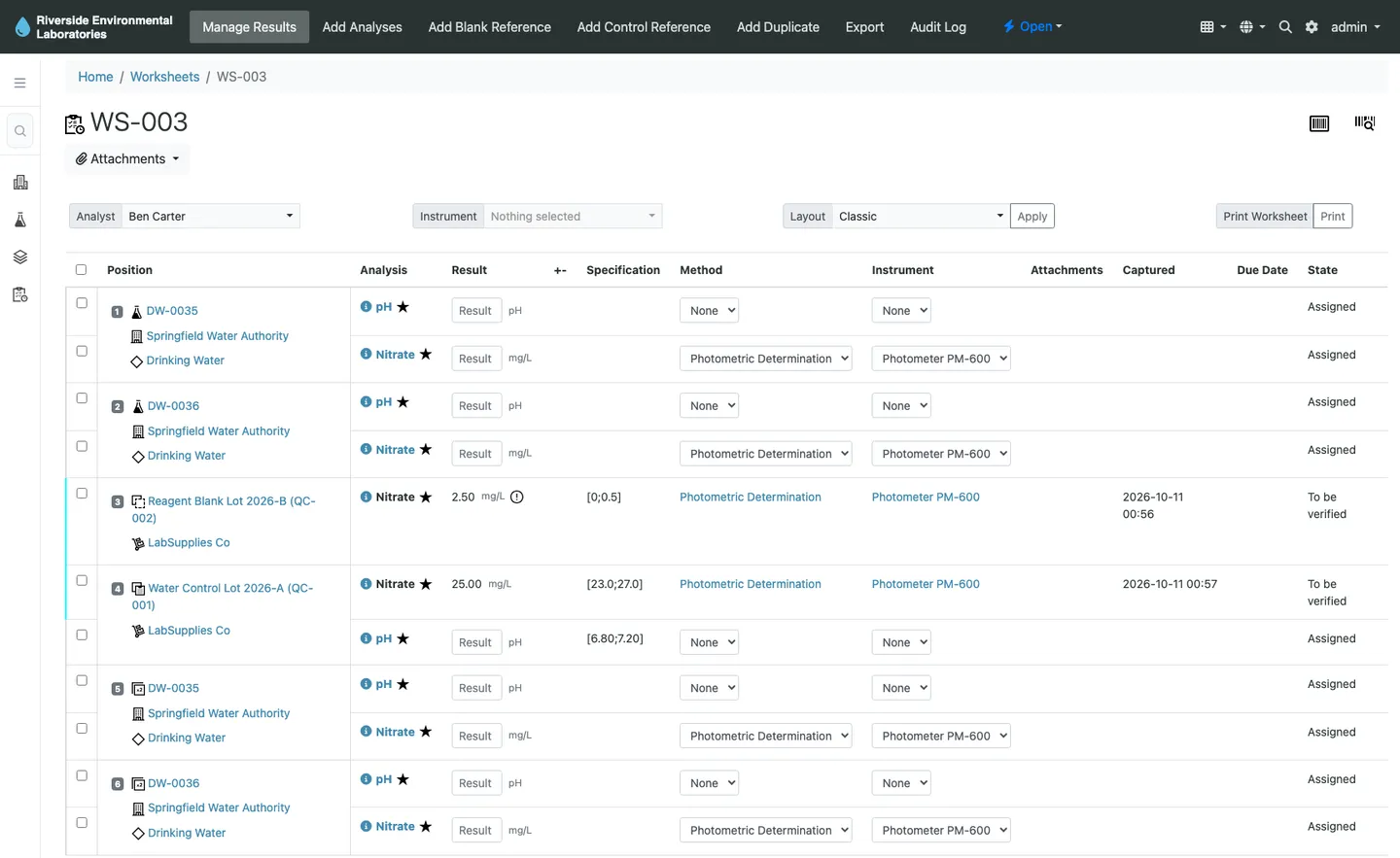
Each sample on a worksheet occupies one position (slot), and all its analyses on that worksheet share the slot. Next to the routine samples, a worksheet can carry three kinds of quality control:
- Blanks: a reference sample without the analyte, to show that the process adds no signal.
- Controls: a reference sample with known values, to show that the instrument reads correctly.
- Duplicates: a second analysis of a routine sample on the same worksheet, to show the measurement is repeatable.
Worksheets are the only place in SENAITE where these QC analyses are added. Each worksheet also has an analyst, the person responsible for it, and optionally an instrument and a method.
Two ways to create one
From the Worksheets menu, a lab manager creates a worksheet and
picks the analyst (required), and optionally a worksheet template
and an instrument. Without a template, the worksheet starts empty
and analyses are added through the Add Analyses tab. That tab
lists every unassigned analysis in the system, across all clients,
so one worksheet can mix work from several customers.
From the samples listing, a lab manager selects samples and runs
Create Worksheet. The dialog asks for the analyst, the analysis
categories whose analyses should go onto the worksheet, and
optionally a template. This is the faster path when reception has
just booked in a batch and the analysis categories map to benches,
for example one category per bench.
Assigned analyses change from Unassigned to Assigned and show a
small worksheet icon in the sample view, so anyone looking at the
sample can see where the work went.
A worked example
A water lab receives twelve drinking water samples, each with pH, conductivity, turbidity and nitrate. pH, conductivity and turbidity are measured on one bench, nitrate on the photometer.
The lab manager creates two worksheets. The first holds pH, conductivity and turbidity for all twelve samples, plus a control. The second holds nitrate for the twelve samples, a blank, a control and one duplicate of the first sample.
On the first worksheet the analyst switches to the Transposed
layout. In the Classic layout, each sample’s analyses are listed
below each other. Transposed puts all results of one analysis
type on one line, so the analyst enters twelve pH values in a row,
then twelve conductivity values, in the order the bench produces
them.
The worksheet can be printed (samples by row or samples by column) for benches without a screen. If the instrument has an export interface, the worksheet can also be exported as a run list for the instrument; see instrument exports.
What the controls actually do
A reference sample carries expected values and a permitted range per analysis service. When it is added to a worksheet, that range becomes the specification of the reference analysis.
If a control result falls outside its range, SENAITE marks the instrument as invalid. It is no longer offered when an analyst picks an instrument for an analysis, and the dashboard reports it. Routine analyses on that instrument that are already waiting for verification are retracted, with the remark “Instrument failed reference test”. A newer control run with results inside the range makes the instrument available again; submitting those results is enough.
Understand this mechanism before going live: one out-of-range control can pull back results the lab considered done. Maintain the reference values before putting controls on worksheets, not after the first surprise.
Duplicates work differently. The allowed deviation comes from the
Duplicate Variation % field of the analysis service. With a
result of 2 and a variation of 10 %, the duplicate has to fall
between 1.8 and 2.2.
The workflow of a worksheet
A worksheet is Open while work is ongoing. When all its analyses
are submitted, it moves to To be verified, and once they are
verified, to Verified. Retracting one of its analyses sends the
worksheet back to Open, because there is work to redo.
Verifiers can verify from the worksheet itself, not only sample by sample. For batch methods that matters: whether a nitrate result is believable depends on the blank and the control next to it, and the worksheet shows them together.
Common mistakes
Expecting samples on a worksheet. A sample is never added to a worksheet; its analyses are. One sample can be spread across several worksheets, which is the normal case in a lab with more than one bench.
Deleting a worksheet with work on it. Only an open worksheet
without analyses can be deleted. Unassign the analyses first
(Unassign); they return to Unassigned.
Handing over by editing. To give a worksheet to another analyst,
select it in the worksheets listing and use Reassign.
Assigning an instrument and expecting every analysis to follow. Setting an instrument on a worksheet sets it on every analysis that supports it. Analyses whose service does not allow that instrument keep their own method and instrument, without a warning.
When to go further
A worksheet built by hand is right for small or irregular runs. As soon as the same arrangement repeats every day (same tray size, a blank in slot 1, a control at the end) build a worksheet template instead. And once the instrument writes a result file, stop typing: instrument imports fill the analyses from that file.