
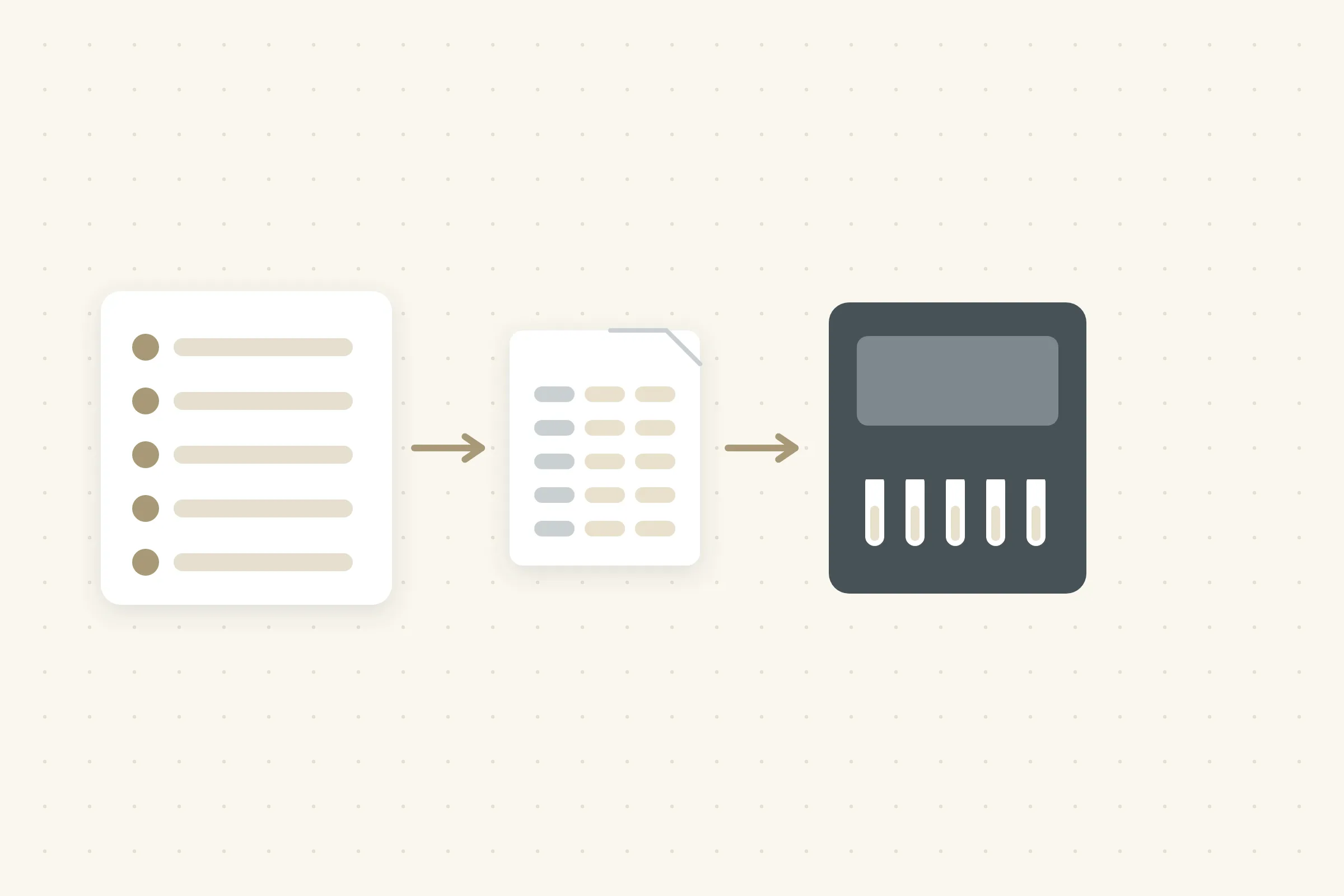
Instrument imports bring results from the instrument into SENAITE. The other direction matters as much. Before a run, someone tells the instrument software which sample sits in which position. Typed by hand, that sequence is where sample IDs get swapped, and a swapped ID at this point produces a correct measurement on the wrong sample, which no verifier will spot.
An export interface takes this step off the keyboard: SENAITE writes the run list from the worksheet, in the format the instrument software reads.
%3btext-align:center%3b%7d%23mermaid-0 .edgeLabel p%7bbackground-color:rgba(232%2c232%2c232%2c 0.8)%3b%7d%23mermaid-0 .edgeLabel rect%7bopacity:0.5%3bbackground-color:rgba(232%2c232%2c232%2c 0.8)%3bfill:rgba(232%2c232%2c232%2c 0.8)%3b%7d%23mermaid-0 .labelBkg%7bbackground-color:rgba(232%2c 232%2c 232%2c 0.5)%3b%7d%23mermaid-0 .cluster rect%7bfill:%23ffffde%3bstroke:%23aaaa33%3bstroke-width:1px%3b%7d%23mermaid-0 .cluster text%7bfill:%23333%3b%7d%23mermaid-0 .cluster span%7bcolor:%23333%3b%7d%23mermaid-0 div.mermaidTooltip%7bposition:absolute%3btext-align:center%3bmax-width:200px%3bpadding:2px%3bfont-family:arial%2csans-serif%3bfont-size:12px%3bbackground:hsl(80%2c 100%25%2c 96.2745098039%25)%3bborder:1px solid %23aaaa33%3bborder-radius:2px%3bpointer-events:none%3bz-index:100%3b%7d%23mermaid-0 .flowchartTitleText%7btext-anchor:middle%3bfont-size:18px%3bfill:%23333%3b%7d%23mermaid-0 rect.text%7bfill:none%3bstroke-width:0%3b%7d%23mermaid-0 .icon-shape%2c%23mermaid-0 .image-shape%7bbackground-color:rgba(232%2c232%2c232%2c 0.8)%3btext-align:center%3b%7d%23mermaid-0 .icon-shape p%2c%23mermaid-0 .image-shape p%7bbackground-color:rgba(232%2c232%2c232%2c 0.8)%3bpadding:2px%3b%7d%23mermaid-0 .icon-shape .label rect%2c%23mermaid-0 .image-shape .label rect%7bopacity:0.5%3bbackground-color:rgba(232%2c232%2c232%2c 0.8)%3bfill:rgba(232%2c232%2c232%2c 0.8)%3b%7d%23mermaid-0 .label-icon%7bdisplay:inline-block%3bheight:1em%3boverflow:visible%3bvertical-align:-0.125em%3b%7d%23mermaid-0 .node .label-icon path%7bfill:currentColor%3bstroke:revert%3bstroke-width:revert%3b%7d%23mermaid-0 .node .neo-node%7bstroke:%239370DB%3b%7d%23mermaid-0 %5bdata-look='neo'%5d.node rect%2c%23mermaid-0 %5bdata-look='neo'%5d.cluster rect%2c%23mermaid-0 %5bdata-look='neo'%5d.node polygon%7bstroke:%239370DB%3bfilter:drop-shadow(1px 2px 2px rgba(185%2c 185%2c 185%2c 1))%3b%7d%23mermaid-0 %5bdata-look='neo'%5d.swimlane.cluster rect%7bfilter:none%3b%7d%23mermaid-0 %5bdata-look='neo'%5d.node path%7bstroke:%239370DB%3bstroke-width:1px%3b%7d%23mermaid-0 %5bdata-look='neo'%5d.node .outer-path%7bfilter:drop-shadow(1px 2px 2px rgba(185%2c 185%2c 185%2c 1))%3b%7d%23mermaid-0 %5bdata-look='neo'%5d.node .neo-line path%7bstroke:%239370DB%3bfilter:none%3b%7d%23mermaid-0 %5bdata-look='neo'%5d.node circle%7bstroke:%239370DB%3bfilter:drop-shadow(1px 2px 2px rgba(185%2c 185%2c 185%2c 1))%3b%7d%23mermaid-0 %5bdata-look='neo'%5d.node circle .state-start%7bfill:black%3b%7d%23mermaid-0 %5bdata-look='neo'%5d.icon-shape .icon%7bfill:%239370DB%3bfilter:drop-shadow(1px 2px 2px rgba(185%2c 185%2c 185%2c 1))%3b%7d%23mermaid-0 %5bdata-look='neo'%5d.icon-shape .icon-neo path%7bstroke:%239370DB%3bfilter:drop-shadow(1px 2px 2px rgba(185%2c 185%2c 185%2c 1))%3b%7d%23mermaid-0 .node%26gt%3brect%2c%23mermaid-0 .node%26gt%3bpolygon%2c%23mermaid-0 .node%26gt%3bcircle%2c%23mermaid-0 .node%26gt%3bpath%7bfill:transparent!important%3bstroke:rgb(122%2c 122%2c 122)!important%3b%7d%23mermaid-0 .cluster%26gt%3brect%7bfill:transparent!important%3bstroke:rgb(122%2c 122%2c 122)!important%3b%7d%23mermaid-0 .nodeLabel%2c%23mermaid-0 .cluster-label span%7bcolor:rgb(85%2c 85%2c 85)!important%3bfill:rgb(85%2c 85%2c 85)!important%3b%7d%23mermaid-0 .edgeLabel%7bbackground:transparent!important%3bcolor:rgb(85%2c 85%2c 85)!important%3b%7d%23mermaid-0 .edgeLabel rect%2c%23mermaid-0 .edgeLabel span%7bbackground:transparent!important%3bfill:transparent!important%3b%7d%23mermaid-0 .flowchart-link%2c%23mermaid-0 .path%2c%23mermaid-0 .messageLine0%2c%23mermaid-0 .messageLine1%7bstroke:rgb(122%2c 122%2c 122)!important%3bfill:none!important%3b%7d%23mermaid-0 .arrowMarkerPath%2c%23mermaid-0 marker path%7bfill:rgb(122%2c 122%2c 122)!important%3bstroke:rgb(122%2c 122%2c 122)!important%3b%7d%23mermaid-0 :root%7b--mermaid-font-family:arial%2csans-serif%3b%7d%3c/style%3e%3cg%3e%3cmarker id='mermaid-0_flowchart-v2-pointEnd' class='marker flowchart-v2' viewBox='0 0 10 10' refX='5' refY='5' markerUnits='userSpaceOnUse' markerWidth='8' markerHeight='8' orient='auto'%3e%3cpath d='M 0 0 L 10 5 L 0 10 z' class='arrowMarkerPath' style='stroke-width: 1%3b stroke-dasharray: 1%2c 0%3b'/%3e%3c/marker%3e%3cmarker id='mermaid-0_flowchart-v2-pointStart' class='marker flowchart-v2' viewBox='0 0 10 10' refX='4.5' refY='5' markerUnits='userSpaceOnUse' markerWidth='8' markerHeight='8' orient='auto'%3e%3cpath d='M 0 5 L 10 10 L 10 0 z' class='arrowMarkerPath' style='stroke-width: 1%3b stroke-dasharray: 1%2c 0%3b'/%3e%3c/marker%3e%3cmarker id='mermaid-0_flowchart-v2-pointEnd-margin' class='marker flowchart-v2' viewBox='0 0 11.5 14' refX='11.5' refY='7' markerUnits='userSpaceOnUse' markerWidth='10.5' markerHeight='14' orient='auto'%3e%3cpath d='M 0 0 L 11.5 7 L 0 14 z' class='arrowMarkerPath' style='stroke-width: 0%3b stroke-dasharray: 1%2c 0%3b'/%3e%3c/marker%3e%3cmarker id='mermaid-0_flowchart-v2-pointStart-margin' class='marker flowchart-v2' viewBox='0 0 11.5 14' refX='1' refY='7' markerUnits='userSpaceOnUse' markerWidth='11.5' markerHeight='14' orient='auto'%3e%3cpolygon points='0%2c7 11.5%2c14 11.5%2c0' class='arrowMarkerPath' style='stroke-width: 0%3b stroke-dasharray: 1%2c 0%3b'/%3e%3c/marker%3e%3cmarker id='mermaid-0_flowchart-v2-circleEnd' class='marker flowchart-v2' viewBox='0 0 10 10' refX='11' refY='5' markerUnits='userSpaceOnUse' markerWidth='11' markerHeight='11' orient='auto'%3e%3ccircle cx='5' cy='5' r='5' class='arrowMarkerPath' style='stroke-width: 1%3b stroke-dasharray: 1%2c 0%3b'/%3e%3c/marker%3e%3cmarker id='mermaid-0_flowchart-v2-circleStart' class='marker flowchart-v2' viewBox='0 0 10 10' refX='-1' refY='5' markerUnits='userSpaceOnUse' markerWidth='11' markerHeight='11' orient='auto'%3e%3ccircle cx='5' cy='5' r='5' class='arrowMarkerPath' style='stroke-width: 1%3b stroke-dasharray: 1%2c 0%3b'/%3e%3c/marker%3e%3cmarker id='mermaid-0_flowchart-v2-circleEnd-margin' class='marker flowchart-v2' viewBox='0 0 10 10' refY='5' refX='12.25' markerUnits='userSpaceOnUse' markerWidth='14' markerHeight='14' orient='auto'%3e%3ccircle cx='5' cy='5' r='5' class='arrowMarkerPath' style='stroke-width: 0%3b stroke-dasharray: 1%2c 0%3b'/%3e%3c/marker%3e%3cmarker id='mermaid-0_flowchart-v2-circleStart-margin' class='marker flowchart-v2' viewBox='0 0 10 10' refX='-2' refY='5' markerUnits='userSpaceOnUse' markerWidth='14' markerHeight='14' orient='auto'%3e%3ccircle cx='5' cy='5' r='5' class='arrowMarkerPath' style='stroke-width: 0%3b stroke-dasharray: 1%2c 0%3b'/%3e%3c/marker%3e%3cmarker id='mermaid-0_flowchart-v2-crossEnd' class='marker cross flowchart-v2' viewBox='0 0 11 11' refX='12' refY='5.2' markerUnits='userSpaceOnUse' markerWidth='11' markerHeight='11' orient='auto'%3e%3cpath d='M 1%2c1 l 9%2c9 M 10%2c1 l -9%2c9' class='arrowMarkerPath' style='stroke-width: 2%3b stroke-dasharray: 1%2c 0%3b'/%3e%3c/marker%3e%3cmarker id='mermaid-0_flowchart-v2-crossStart' class='marker cross flowchart-v2' viewBox='0 0 11 11' refX='-1' refY='5.2' markerUnits='userSpaceOnUse' markerWidth='11' markerHeight='11' orient='auto'%3e%3cpath d='M 1%2c1 l 9%2c9 M 10%2c1 l -9%2c9' class='arrowMarkerPath' style='stroke-width: 2%3b stroke-dasharray: 1%2c 0%3b'/%3e%3c/marker%3e%3cmarker id='mermaid-0_flowchart-v2-crossEnd-margin' class='marker cross flowchart-v2' viewBox='0 0 15 15' refX='17.7' refY='7.5' markerUnits='userSpaceOnUse' markerWidth='12' markerHeight='12' orient='auto'%3e%3cpath d='M 1%2c1 L 14%2c14 M 1%2c14 L 14%2c1' class='arrowMarkerPath' style='stroke-width: 2.5%3b'/%3e%3c/marker%3e%3cmarker id='mermaid-0_flowchart-v2-crossStart-margin' class='marker cross flowchart-v2' viewBox='0 0 15 15' refX='-3.5' refY='7.5' markerUnits='userSpaceOnUse' markerWidth='12' markerHeight='12' orient='auto'%3e%3cpath d='M 1%2c1 L 14%2c14 M 1%2c14 L 14%2c1' class='arrowMarkerPath' style='stroke-width: 2.5%3b stroke-dasharray: 1%2c 0%3b'/%3e%3c/marker%3e%3cg class='root'%3e%3cg class='clusters'/%3e%3cg class='edgePaths'%3e%3cpath d='M144.188%2c35L152.208%2c35C160.229%2c35%2c176.271%2c35%2c191.646%2c35C207.021%2c35%2c221.729%2c35%2c229.083%2c35L236.438%2c35' id='mermaid-0-L_A_B_0' class='edge-thickness-normal edge-pattern-solid edge-thickness-normal edge-pattern-solid flowchart-link' style='%3b' data-edge='true' data-et='edge' data-id='L_A_B_0' data-points='W3sieCI6MTQ0LjE4NzUsInkiOjM1fSx7IngiOjE5Mi4zMTI1LCJ5IjozNX0seyJ4IjoyNDAuNDM3NSwieSI6MzV9XQ==' data-look='classic' marker-end='url(%23mermaid-0_flowchart-v2-pointEnd)'/%3e%3cpath d='M378.688%2c35L382.854%2c35C387.021%2c35%2c395.354%2c35%2c403.021%2c35C410.688%2c35%2c417.688%2c35%2c421.188%2c35L424.688%2c35' id='mermaid-0-L_B_C_0' class='edge-thickness-normal edge-pattern-solid edge-thickness-normal edge-pattern-solid flowchart-link' style='%3b' data-edge='true' data-et='edge' data-id='L_B_C_0' data-points='W3sieCI6Mzc4LjY4NzUsInkiOjM1fSx7IngiOjQwMy42ODc1LCJ5IjozNX0seyJ4Ijo0MjguNjg3NSwieSI6MzV9XQ==' data-look='classic' marker-end='url(%23mermaid-0_flowchart-v2-pointEnd)'/%3e%3cpath d='M629.188%2c35L639.208%2c35C649.229%2c35%2c669.271%2c35%2c688.646%2c35C708.021%2c35%2c726.729%2c35%2c736.083%2c35L745.438%2c35' id='mermaid-0-L_C_D_0' class='edge-thickness-normal edge-pattern-solid edge-thickness-normal edge-pattern-solid flowchart-link' style='%3b' data-edge='true' data-et='edge' data-id='L_C_D_0' data-points='W3sieCI6NjI5LjE4NzUsInkiOjM1fSx7IngiOjY4OS4zMTI1LCJ5IjozNX0seyJ4Ijo3NDkuNDM3NSwieSI6MzV9XQ==' data-look='classic' marker-end='url(%23mermaid-0_flowchart-v2-pointEnd)'/%3e%3cpath d='M854.781%2c35L858.948%2c35C863.115%2c35%2c871.448%2c35%2c879.115%2c35C886.781%2c35%2c893.781%2c35%2c897.281%2c35L900.781%2c35' id='mermaid-0-L_D_E_0' class='edge-thickness-normal edge-pattern-solid edge-thickness-normal edge-pattern-solid flowchart-link' style='%3b' data-edge='true' data-et='edge' data-id='L_D_E_0' data-points='W3sieCI6ODU0Ljc4MTI1LCJ5IjozNX0seyJ4Ijo4NzkuNzgxMjUsInkiOjM1fSx7IngiOjkwNC43ODEyNSwieSI6MzV9XQ==' data-look='classic' marker-end='url(%23mermaid-0_flowchart-v2-pointEnd)'/%3e%3c/g%3e%3cg class='edgeLabels'%3e%3cg class='edgeLabel' transform='translate(192.3125%2c 35)'%3e%3cg class='label' data-id='L_A_B_0' transform='translate(-23.125%2c -12)'%3e%3cforeignObject width='46.25' height='24'%3e%3cdiv xmlns='http://www.w3.org/1999/xhtml' class='labelBkg' style='display: table-cell%3b white-space: nowrap%3b line-height: 1.5%3b max-width: 200px%3b text-align: center%3b'%3e%3cspan class='edgeLabel'%3e%3cp%3eExport%3c/p%3e%3c/span%3e%3c/div%3e%3c/foreignObject%3e%3c/g%3e%3c/g%3e%3cg class='edgeLabel'%3e%3cg class='label' data-id='L_B_C_0' transform='translate(0%2c 0)'%3e%3cforeignObject width='0' height='0'%3e%3cdiv xmlns='http://www.w3.org/1999/xhtml' class='labelBkg' style='display: table-cell%3b white-space: nowrap%3b line-height: 1.5%3b max-width: 200px%3b text-align: center%3b'%3e%3cspan class='edgeLabel'%3e%3c/span%3e%3c/div%3e%3c/foreignObject%3e%3c/g%3e%3c/g%3e%3cg class='edgeLabel' transform='translate(689.3125%2c 35)'%3e%3cg class='label' data-id='L_C_D_0' transform='translate(-35.125%2c -12)'%3e%3cforeignObject width='70.25' height='24'%3e%3cdiv xmlns='http://www.w3.org/1999/xhtml' class='labelBkg' style='display: table-cell%3b white-space: nowrap%3b line-height: 1.5%3b max-width: 200px%3b text-align: center%3b'%3e%3cspan class='edgeLabel'%3e%3cp%3eResult file%3c/p%3e%3c/span%3e%3c/div%3e%3c/foreignObject%3e%3c/g%3e%3c/g%3e%3cg class='edgeLabel'%3e%3cg class='label' data-id='L_D_E_0' transform='translate(0%2c 0)'%3e%3cforeignObject width='0' height='0'%3e%3cdiv xmlns='http://www.w3.org/1999/xhtml' class='labelBkg' style='display: table-cell%3b white-space: nowrap%3b line-height: 1.5%3b max-width: 200px%3b text-align: center%3b'%3e%3cspan class='edgeLabel'%3e%3c/span%3e%3c/div%3e%3c/foreignObject%3e%3c/g%3e%3c/g%3e%3c/g%3e%3cg class='nodes'%3e%3cg class='node default' id='mermaid-0-flowchart-A-0' data-look='classic' transform='translate(76.09375%2c 35)'%3e%3crect class='basic label-container' style='' x='-68.09375' y='-27' width='136.1875' height='54'/%3e%3cg class='label' style='' transform='translate(-38.09375%2c -12)'%3e%3crect/%3e%3cforeignObject width='76.1875' height='24'%3e%3cdiv xmlns='http://www.w3.org/1999/xhtml' style='display: table-cell%3b white-space: nowrap%3b line-height: 1.5%3b max-width: 200px%3b text-align: center%3b'%3e%3cspan class='nodeLabel'%3e%3cp%3eWorksheet%3c/p%3e%3c/span%3e%3c/div%3e%3c/foreignObject%3e%3c/g%3e%3c/g%3e%3cg class='node default' id='mermaid-0-flowchart-B-1' data-look='classic' transform='translate(309.5625%2c 35)'%3e%3crect class='basic label-container' style='' x='-69.125' y='-27' width='138.25' height='54'/%3e%3cg class='label' style='' transform='translate(-39.125%2c -12)'%3e%3crect/%3e%3cforeignObject width='78.25' height='24'%3e%3cdiv xmlns='http://www.w3.org/1999/xhtml' style='display: table-cell%3b white-space: nowrap%3b line-height: 1.5%3b max-width: 200px%3b text-align: center%3b'%3e%3cspan class='nodeLabel'%3e%3cp%3eRun list file%3c/p%3e%3c/span%3e%3c/div%3e%3c/foreignObject%3e%3c/g%3e%3c/g%3e%3cg class='node default' id='mermaid-0-flowchart-C-3' data-look='classic' transform='translate(528.9375%2c 35)'%3e%3crect class='basic label-container' style='' x='-100.25' y='-27' width='200.5' height='54'/%3e%3cg class='label' style='' transform='translate(-70.25%2c -12)'%3e%3crect/%3e%3cforeignObject width='140.5' height='24'%3e%3cdiv xmlns='http://www.w3.org/1999/xhtml' style='display: table-cell%3b white-space: nowrap%3b line-height: 1.5%3b max-width: 200px%3b text-align: center%3b'%3e%3cspan class='nodeLabel'%3e%3cp%3eInstrument software%3c/p%3e%3c/span%3e%3c/div%3e%3c/foreignObject%3e%3c/g%3e%3c/g%3e%3cg class='node default' id='mermaid-0-flowchart-D-5' data-look='classic' transform='translate(802.109375%2c 35)'%3e%3crect class='basic label-container' style='' x='-52.671875' y='-27' width='105.34375' height='54'/%3e%3cg class='label' style='' transform='translate(-22.671875%2c -12)'%3e%3crect/%3e%3cforeignObject width='45.34375' height='24'%3e%3cdiv xmlns='http://www.w3.org/1999/xhtml' style='display: table-cell%3b white-space: nowrap%3b line-height: 1.5%3b max-width: 200px%3b text-align: center%3b'%3e%3cspan class='nodeLabel'%3e%3cp%3eImport%3c/p%3e%3c/span%3e%3c/div%3e%3c/foreignObject%3e%3c/g%3e%3c/g%3e%3cg class='node default' id='mermaid-0-flowchart-E-7' data-look='classic' transform='translate(1015.2734375%2c 35)'%3e%3crect class='basic label-container' style='' x='-110.4921875' y='-27' width='220.984375' height='54'/%3e%3cg class='label' style='' transform='translate(-80.4921875%2c -12)'%3e%3crect/%3e%3cforeignObject width='160.984375' height='24'%3e%3cdiv xmlns='http://www.w3.org/1999/xhtml' style='display: table-cell%3b white-space: nowrap%3b line-height: 1.5%3b max-width: 200px%3b text-align: center%3b'%3e%3cspan class='nodeLabel'%3e%3cp%3eAnalyses to be verified%3c/p%3e%3c/span%3e%3c/div%3e%3c/foreignObject%3e%3c/g%3e%3c/g%3e%3c/g%3e%3c/g%3e%3c/g%3e%3cdefs%3e%3cfilter id='mermaid-0-drop-shadow' height='130%25' width='130%25'%3e%3cfeDropShadow dx='4' dy='4' stdDeviation='0' flood-opacity='0.06' flood-color='black'/%3e%3c/filter%3e%3c/defs%3e%3cdefs%3e%3cfilter id='mermaid-0-drop-shadow-small' height='150%25' width='150%25'%3e%3cfeDropShadow dx='2' dy='2' stdDeviation='0' flood-opacity='0.06' flood-color='black'/%3e%3c/filter%3e%3c/defs%3e%3c/svg%3e)
What core ships
Export interfaces are rarer than import interfaces, because fewer instruments accept a run list from outside. SENAITE core ships exporters for three:
- Varian Vista-PRO ICP
- Lachat QuickChem
- FOSS FIAStar
The senaite.instruments add-on adds further interfaces, including exporters for Agilent ChemStation, Agilent MassHunter and Thermo Xcalibur. For everything else, an export interface is written in the project add-on (see below).
Before planning an integration, check two things in the instrument’s documentation: whether its software can load a sequence or run list at all, and which file it expects. That decides whether an export is possible, not SENAITE.
Setting it up
On the instrument (Setup, Instruments), select the exporter under
Data Interface. Each instrument has one export interface, next to
any number of import interfaces.
On the worksheet, assign that instrument. A worksheet is exported for one instrument at a time; without an assigned instrument, the export stops with “You must select an instrument”, and an instrument without an export interface gives “Instrument has no data interface selected”.
Then choose Export on the worksheet. The browser downloads the
file, which the operator loads into the instrument software.
What the file contains
The Varian exporter is a good example of what these files look like. It writes one line per sample, ordered by worksheet position, with the sample ID in the first column and fixed values the instrument software expects in the others:
"W-0101*","                    ","                    ","                    ",1.000000000,1.000000,1.0000000
"W-0102*","                    ","                    ","                    ",1.000000000,1.000000,1.0000000
The asterisk separates the sample ID from the sample point title, which is empty here. Blanks, controls and duplicates on the worksheet get a line as well, identified by their reference analysis group ID instead of a sample ID.
What the other columns mean is the instrument’s business. The exporter writes what the instrument software requires; SENAITE does not interpret it.
How the round trip closes
The import does not match results by position. It matches by ID: first as sample ID, then as client sample ID, and for QC by the reference analysis group ID. That is why the round trip works: the instrument writes the IDs it received in the run list back into its result file, and the importer finds the same samples and the same QC analyses again.
Two things follow.
The order on the tray must match the run list. SENAITE cannot see the physical tray. If the operator loads position 5 and 6 the other way round, the instrument reports W-0105’s measurement under W-0106’s ID. A worksheet template helps here, because every worksheet then has the same structure as the tray.
IDs must survive the instrument software. Some instruments truncate IDs or strip characters. Test the round trip with your real ID format, for example one with a prefix and a year, before go-live. See the ID server for how sample IDs are built.
What the export does not do
The export is a download. SENAITE does not keep a copy of the file on the worksheet, unlike the import, which attaches the result file. If the lab needs the run list as a record, the instrument software’s own run archive is the place to keep it.
The export does not change the state of anything. Analyses stay
Assigned until results come back.
It also does not push anything over the network. For instruments that receive orders through a live connection rather than a file, the route is a protocol connection such as ASTM, see senaite.astm.
Writing your own exporter
An export interface is a small adapter in the project add-on. It
implements IInstrumentExportInterface, provides an Export method,
and gets the worksheet’s analyses when called. From these it builds
the file: sample ID, position, and whatever the instrument needs,
then sends it to the browser as a download. After registration it
appears under Data Interface next to the built-in ones.
The code is the smaller part of the work. The effort goes into the instrument’s file specification: which columns, which separator, which encoding, how QC samples are marked, whether a header is required. Get a sample run list from the instrument software and one complete run with result file before writing anything, and test the finished exporter on the instrument itself, not only by looking at the file.
Without a network at the bench
Instrument PCs are often not on the lab network. The export and import pattern works anyway: download the run list, carry it to the instrument on a USB stick, run the batch, carry the result file back and import it. What matters is that the IDs travel in files, not through someone’s hands on a keyboard.