Most labs have at least one instrument whose results are still typed in by hand from a printout or a screen. Every typed value is a chance for a transposition error, and every one of them has to be caught at verification. If the instrument can write its results to a file (CSV, TXT, XLSX, XML), SENAITE can read that file instead.
This post explains what happens during an import, how to set one up, and where imports fail in practice.
Two parts: parser and importer
Every import interface consists of two pieces.
The parser understands one file format. It reads the file and
produces, per sample, a set of values keyed by analysis keyword.
SENAITE ships parsers for several dozen instrument models (Abaxis,
Beckman Coulter, FOSS, Horiba, Lachat, Mettler Toledo, Roche, Seal
Analytical, Shimadzu, Sysmex, Thermo Scientific, Varian and
others), plus the generic 2-Dimensional-CSV interface.
The importer is the same for all of them. It takes the parsed values, finds the matching sample and analysis, writes the result and submits it.
Setting up an instrument
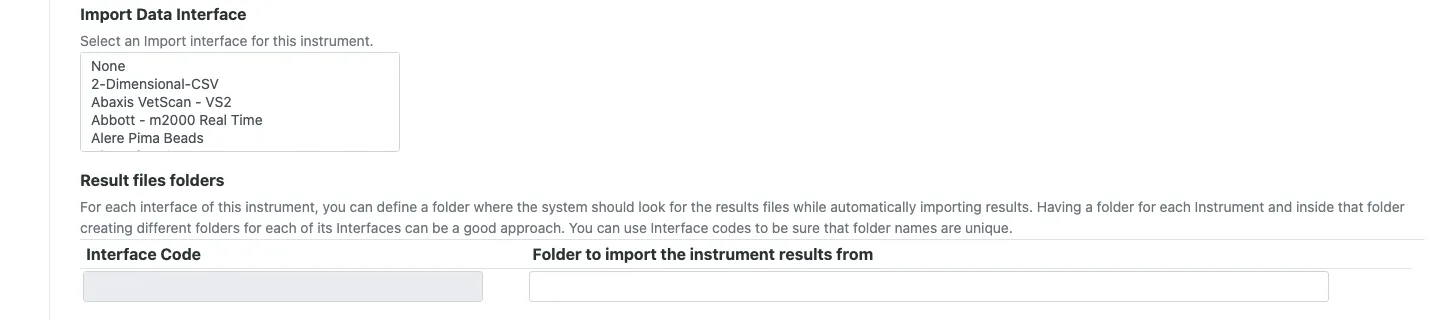
On the instrument (Setup, Instruments) pick one or more
interfaces under Import Data Interface. Only analyses that run on
this instrument should take results from it, so check that the
analysis services list the instrument as well.
If no vendor parser fits, the generic interface often does. It reads a simple table: the first column is the sample ID, the other columns are analysis keywords.
ID,PH,COND,NO3,end
W-0101,7.42,512,8.1,
W-0102,7.38,498,12.6,
end
Most instrument software can export a table of this shape, or be
made to with a small template. The end markers are tolerated for
compatibility and can be left out.
A manual import, step by step
Choose Import from the menu at the top right, pick the instrument
and the interface, and upload the file. Two advanced options decide
what the import may touch:
Samples state:Received(default) orReceived and to be verified. Samples in other states are ignored.Results override:Don't override results(default),Override non-empty results, orOverride non-empty results (also with empty).
With the defaults, an import only fills empty results on received samples. That is the right setting for daily work. Overriding is for a re-run after a calibration problem, and should be a deliberate choice.
For the file above, the importer then:
- Looks up
W-0101as a sample ID. If nothing is found, it tries the client sample ID. - Finds the analysis with keyword
PHon that sample, in stateUnassigned,AssignedorTo be verified. - Writes
7.42as the result, and submits the analysis. - Recalculates any calculated analyses on the sample that depend on the imported values.
- If the analysis sits on a worksheet, attaches the import file to that worksheet.
At the end it shows a log with every value it wrote and every row it skipped, with the reason.
Imported results still need verification
By default, imported analyses are submitted straight away (Submit Analyses upon import under Site Setup, SENAITE Registry,
Import). They land in To be verified and go through the same
verification as typed results. The import removes typing, not
review. See
multi-level verification
for how verification is configured.
If the lab wants analysts to look at imported values before they are submitted, switch that setting off. The values are then written and the analyst submits them on the worksheet.
The import file is attached to the worksheet, so the raw data stays
next to the results. With Attach import file to Analyses (off by
default) it is linked to each imported analysis as well.
Calculated analyses and result options
An analysis with a calculation does not take a result from the file. The importer logs “Skipping result” for it. What it does take are the calculation’s interim fields: put the interim keywords as columns in the file, and SENAITE calculates the result. For a dry-mass correction, for example, the file carries the wet-mass value and the factor; the corrected result is computed in SENAITE, with the formula the lab validated. See SENAITE calculations.
For analyses with result options, the file can carry the numeric value of the option, and the importer selects the matching entry.
Automatic import from a folder
For instruments that write their files to a network share, SENAITE
can pick them up on its own. On the instrument, Result files folders holds one folder per import interface. The folder must be
reachable by the SENAITE server process, which is where most setups
need a word with IT about mounts and permissions.
A cron job then calls the auto_import_results view of the site at
regular intervals; the button Manually trigger auto import runs
the same thing on demand. For each new file, SENAITE runs the
import and writes two files into the folder:
imported.csvlists the file names already processed, so nothing is imported twice.logs.logholds the same log the manual import shows.
Two consequences follow from this design. A file that was fixed and saved again under the same name is not imported again; give it a new name. And the override options of the cron call default to “do not override”, which is the safe choice for unattended runs.
When a value does not arrive
The log says why. The common causes, in the order we see them:
The keyword does not match. The column header must be the
analysis keyword, not its title. NO3 and Nitrate are different
things to the importer.
The sample is not received. With the default Samples state,
a sample that is still Sample due is skipped.
A result is already there. Without override, an existing value is kept and logged.
The analysis is calculated. The file must carry the interim values, not the final result.
The ID is ambiguous. Client sample IDs are not unique in every lab. If two samples carry the same client sample ID, the importer refuses the row with “More than one Sample found”.
Two analyses with the same keyword. If a sample carries two open analyses with the same keyword, the importer cannot decide and skips the value.
Read the log after every import for the first weeks. It is the fastest way to find mismatched keywords and sample states.
When no parser fits
A parser for an unusual format is a small Python class: it extends
InstrumentCSVResultsFileParser (or the TXT variant) and
implements _parseline, which turns one line of the file into
values per sample and keyword. Encoding, line handling and error
collection come from the base class. It is registered as an adapter
in a project add-on and then appears in the interface list like the
built-in ones.
How long that takes depends on the file. A clean table is quick. A vendor export with multiple header blocks, per-replicate rows and units embedded in the values takes longer, and the effort goes into understanding the file, not into the code. Ask for real export files from the instrument early, including the awkward cases: a re-measured sample, a value below the detection limit, an aborted run.
For instruments that talk over a serial or network connection instead of writing files, see senaite.astm. The other direction, sending the run list to the instrument, is covered in instrument exports.